
Marketplace connection and order processing
Connect your Trendyol, Hepsiburada, n11, Amazon and other stores; Orders will automatically appear in a single list. Confirm, invoice with one click, send the e-document, and print the shipping label. Your stocks are synchronized across all channels.
Audio narration · Click on the player for Turkish subtitles. CC button. The same steps are written and screenshotted below.
before you start
- ●Pazaryerinin satıcı panelinden your API information alın. Örneğin Trendyol: Satıcı paneli → Hesap Bilgilerim → Entegrasyon Bilgileri (Satıcı ID, API Key, API Secret).
- ●Ürünleriniz card stock olarak girilmiş olsun (Ürünler → Excel'den Yükle). Barkod ya da stok kodu pazaryerindekiyle aynı olursa siparişler ürünlerinizle kendiliğinden eşleşir.
- ●Stoğun düşeceği bir depo ve stok miktarları girilmiş olsun (Ürünler → Stok Durumu → Excel'den stok yükle).
- ●Your e-Invoice integration must be connected so that the invoices are sent as e-Invoice / e-Archive. If it is not connected, the invoice will be issued again; You can send the e-document later.
step by step
-
 Enlarge ⤢
1
Connect the store
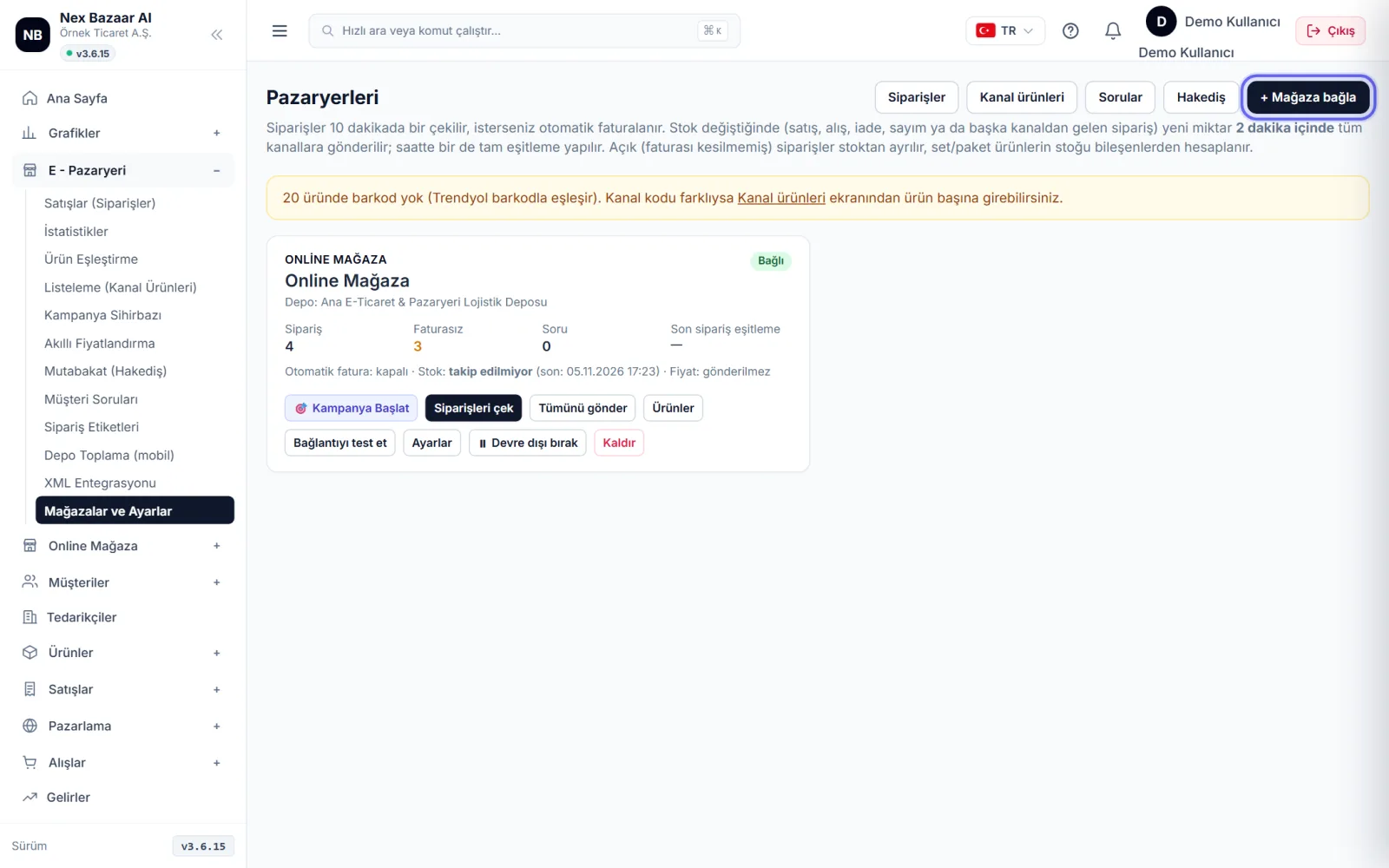
In the left menu E - Marketplace → Stores and Settings'a girin ve + Connect store'ya tıklayın. Listeden pazaryerinizi seçin. Bir pazaryerinde birden fazla mağazanız varsa her birini ayrı bağlayabilirsiniz.
-
 Enlarge ⤢
2
Enter connection information
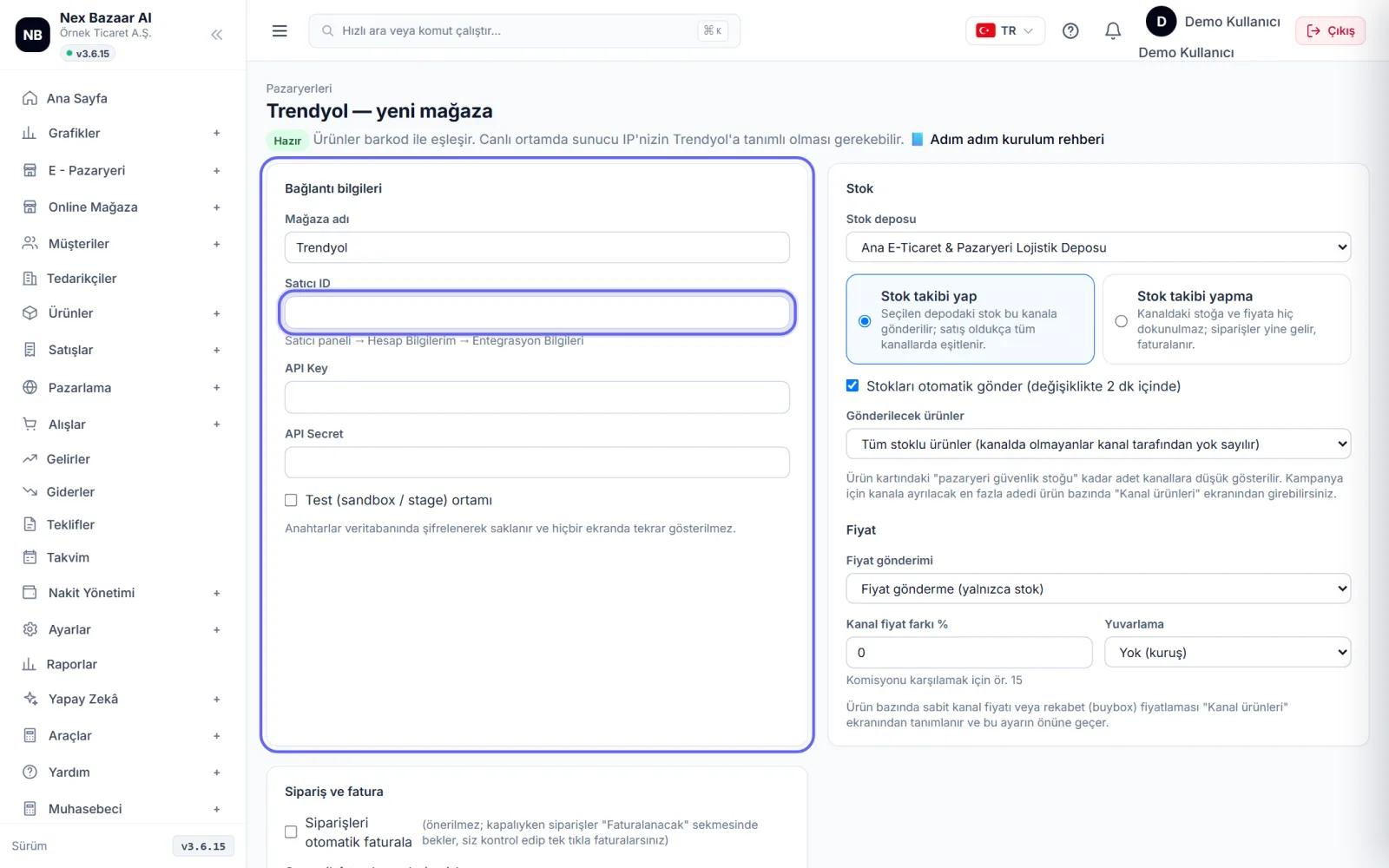
Store name (the name you will see in the list) and the name you bought from the marketplace Seller ID, API Key, API Secret bilgilerini girin. Her alanın altında, bilginin pazaryeri panelinde nerede olduğu yazar. Anahtarlar şifreli saklanır ve bir daha hiçbir ekranda gösterilmez.
-
 Enlarge ⤢
3
Select stock setting
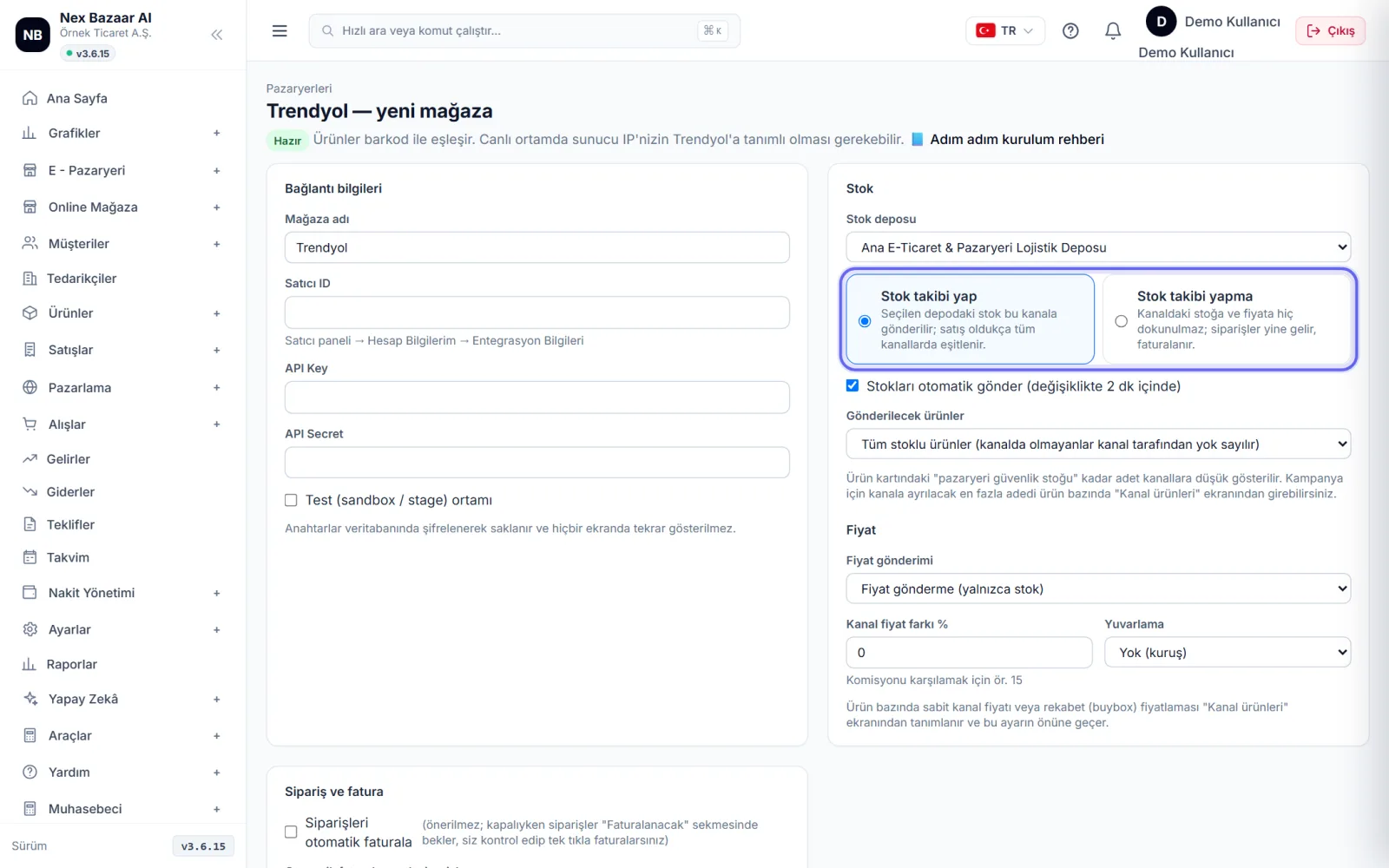
Stock warehouseSelect . Keep track of stock If selected, the stock in this warehouse is sent to the marketplace and synced across all channels with each sale; Send stocks automatically If checked, the change will be gone within 2 minutes. If you want the stock in the marketplace to remain untouched Keeping track of stock'yı seçin; siparişler yine gelir.
-
 Enlarge ⤢
4
Adjust price and invoice settings
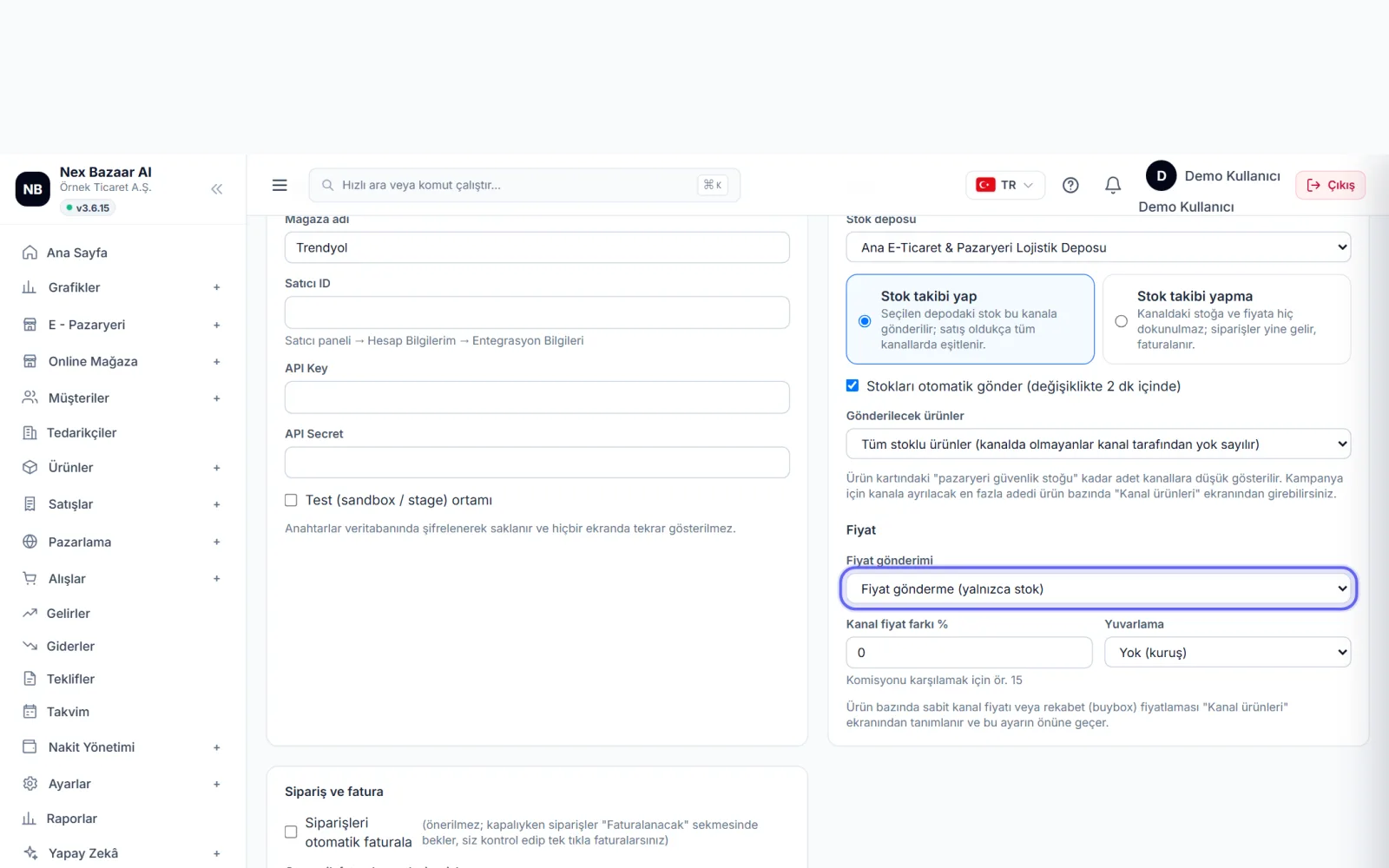
Price submission: If you choose "Submit price" you will manage the price from the marketplace; If you select "sale price on product card" or a price list, the price goes from there. To cover the commission Channel price difference % and Rounding You can add (e.g. ,90). Order and invoice Enter the default commission and payment term in the section. Save'e basın, ardından mağaza kartındaki Test connection ile bilgileri doğrulayın.
-
 Enlarge ⤢
5
Orders come automatically
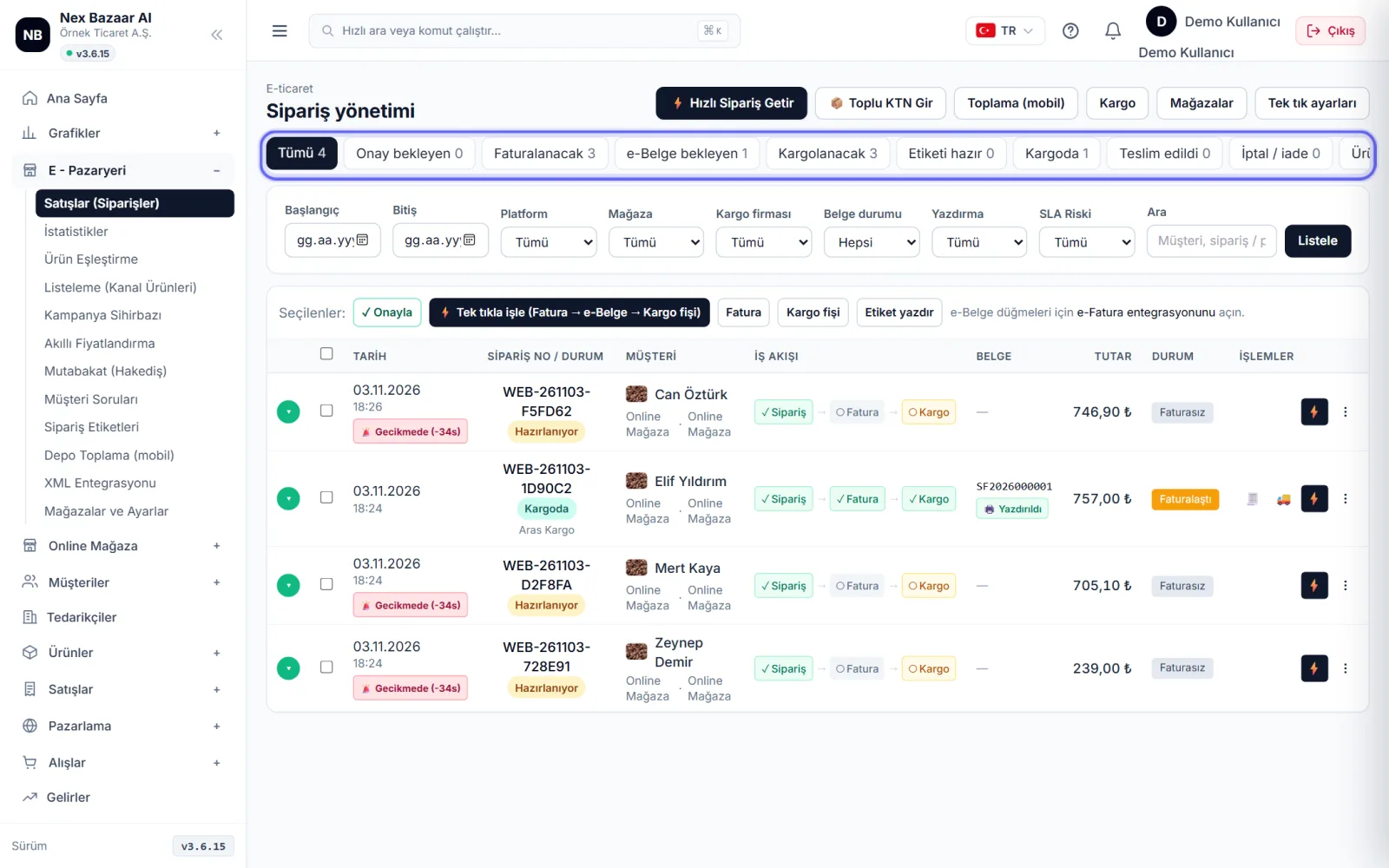
Orders are automatically picked up approximately every 10 minutes; to see immediately ⚡ Get Order FastPress . E - Marketplace → Sales (Orders) The order of all channels is in a single list on the screen. The tabs at the top show what stage the job is in: Pending approval, To be invoiced, Pending e-document, To be shipped, Label ready, In cargo, Delivered, Cancellation / return, Product not matching.
-
 Enlarge ⤢
6
Confirm orders
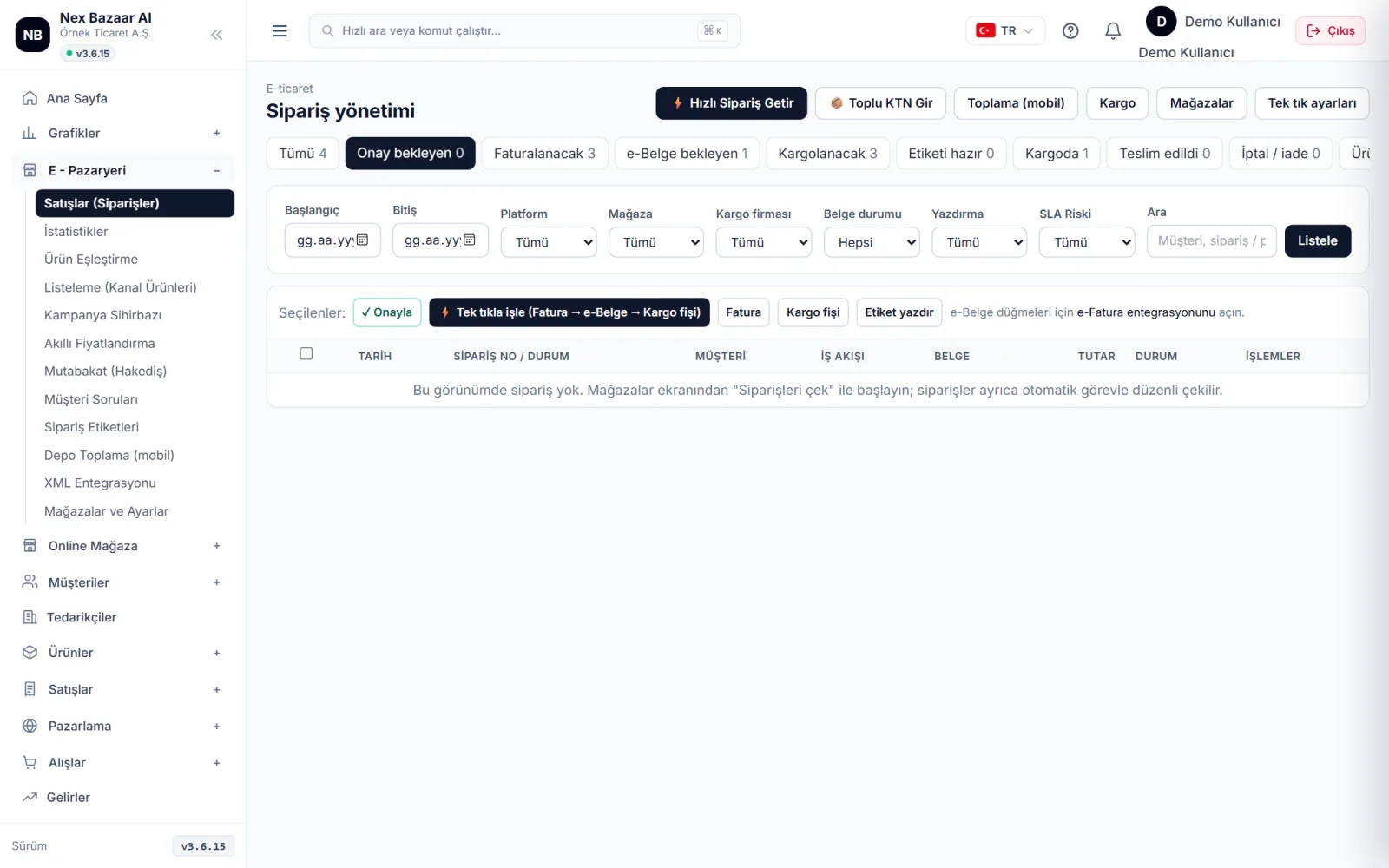
New order on line ✓ Confirm ile ya da hepsini birden ✓ Confirm all ile "Hazırlanıyor" durumuna alın. Onay programdaki iş takibiniz içindir; pazaryerine "hazırlanıyor" bildirimi gönderilmez.
-
 Enlarge ⤢
7
Invoice with one click, prepare e-document and cargo
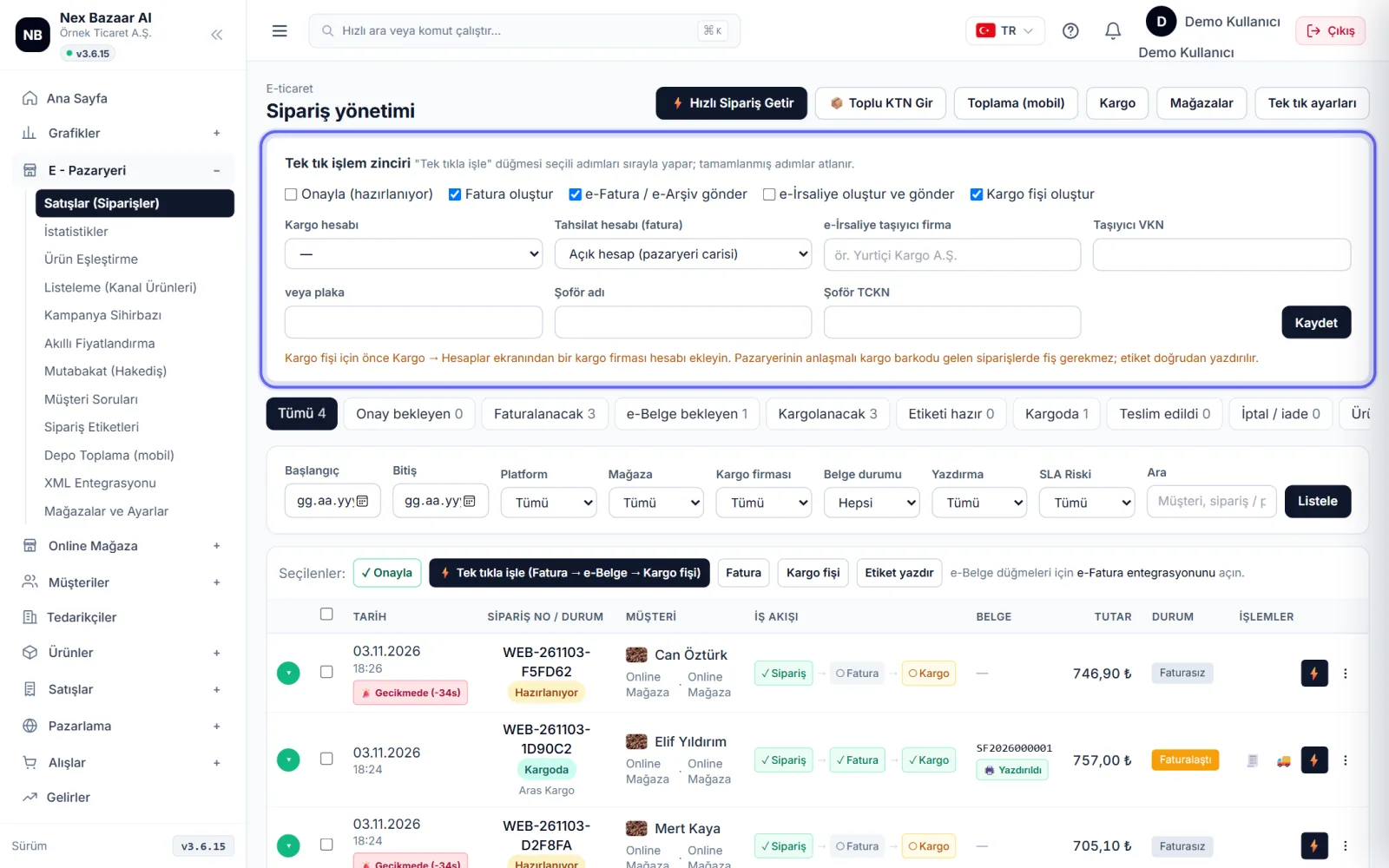
One-click settings'ndan hangi adımların sırayla yapılacağını bir kez seçin: onay, fatura oluştur, e-Fatura / e-Arşiv gönder, e-İrsaliye, kargo fişi. Sonra siparişleri işaretleyip ⚡ Process with one click'ye basın. Fatura kesildiğinde stok düşer ve müşteri carisi borçlanır; müşteri carisi yoksa siparişteki bilgilerle kendiliğinden açılır.
-
 Enlarge ⤢
8
Print shipping label
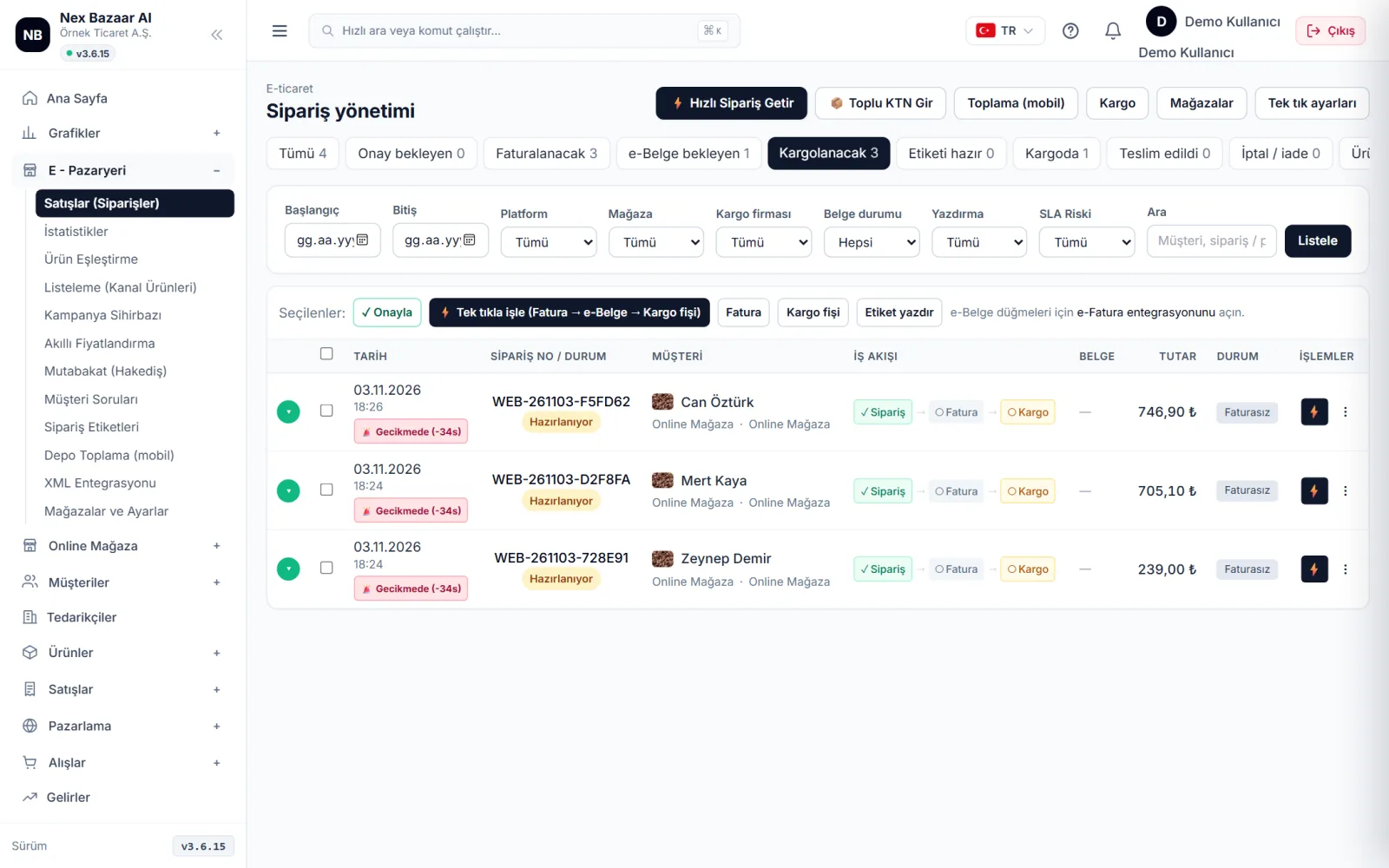
To be shipped and Label ready Print the shipping label (10×10 or 10×15) from the tabs. tracking numbers one by one or 📦 Enter Bulk KTN You can enter in bulk using . To collect products in the warehouse Warehouse Picking (mobile) ekranını telefondan kullanın.
-
 Enlarge ⤢
9
Check for mismatched products
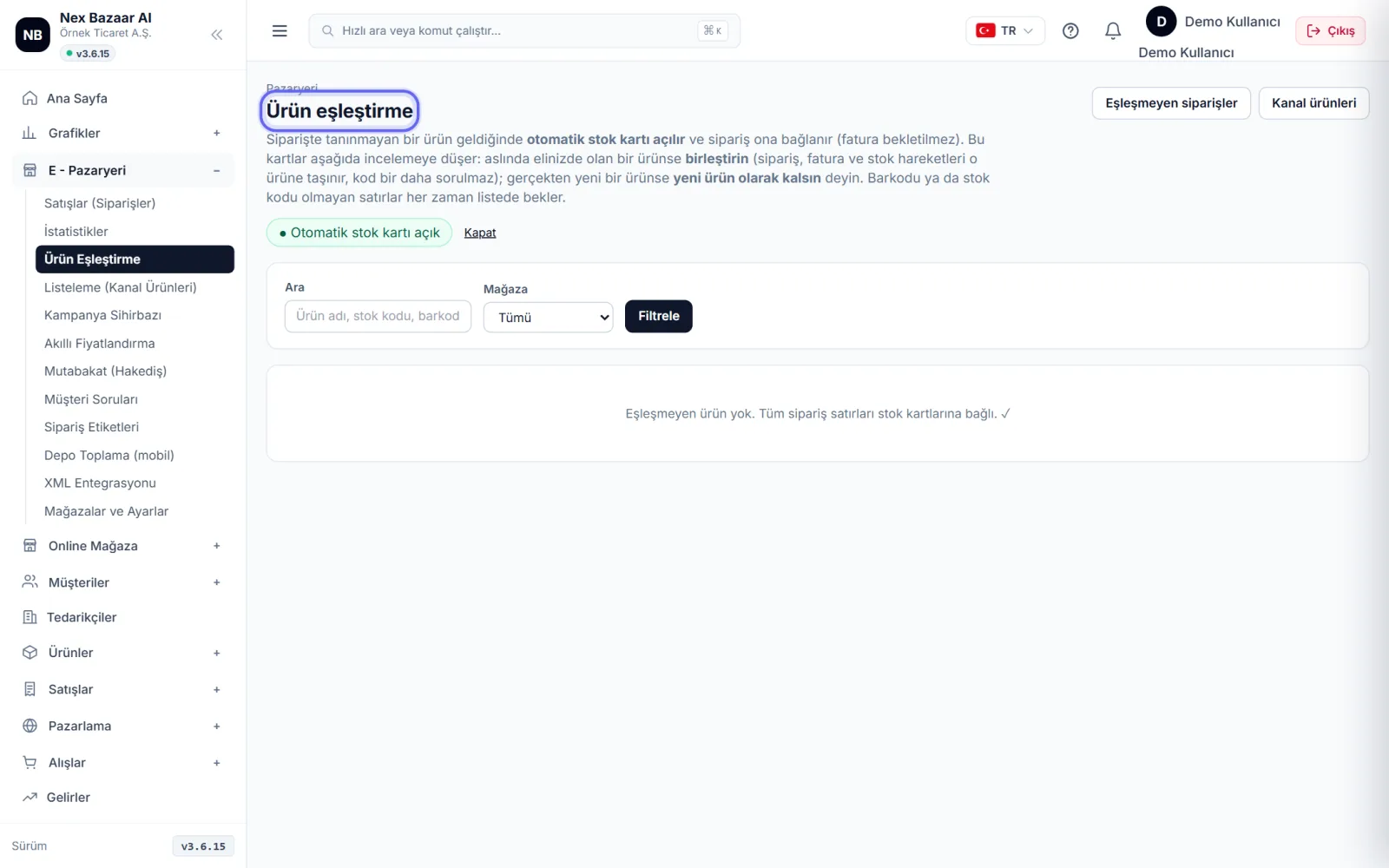
If the barcode or stock code of the product in the order does not match a product you have, the order will not be waited: for that product automatic card stock opens and the warning "⚠ did not match stock card" appears on the order. E - Marketplace → Product Matching'de bu kartı mevcut ürününüzle ⇄ Combine'in ya da ✓ Keep it as a new product deyin. Birleştirince sonraki siparişler doğrudan eşleşir.
Common problems
"Bağlantıyı test et" hata veriyor+
Copy the API information again from the marketplace panel (no leading/trailing spaces). Some marketplaces require you to enable API access separately or whitelist the server IP. If you are using a test (stage) environment key, check the "Test environment" box on the form.
My product's stock appears to be 0 in the marketplace+
Pazaryerine giden miktar: depodaki stok − faturası kesilmemiş açık siparişler − ürünün "pazaryeri güvenlik stoğu". Depoda 1-2 adet varsa ve güvenlik stoğu 2 ise 0 gider; Ürünler → toplu düzenleme ile güvenlik stoğunu değiştirebilirsiniz. Sistemde stoğu hiç girilmemiş ürün için pazaryerine 0 gönderilmez.
Orders are not coming+
Mağaza kartında mağazanın etkin olduğunu ve "Son sipariş eşitleme" zamanını kontrol edin, ⚡ Get Order Fast ile hemen çekin. Mağaza kartında hata yazıyorsa önce "Bağlantıyı test et".
The invoice was issued but the e-document was not sent+
Order Awaiting e-document appears in the tab. Make sure your e-Invoice integration is connected, then from the menu on the line 📤 Send e-Invoice / e-Archive.
Frequently asked questions
"Onayla" pazaryerine bildirilir mi?+
No. Approval is only your work tracking in the program (New → Preparing). The status on the marketplace side is updated with cargo information and delivery.
Can I have orders automatically invoiced?+
Yes, you can turn it on from the "Order and invoice" section in the store settings. Orders with non-matching products are not automatically invoiced; is marked in the list.
How many stores can I connect?+
Up to your plan's marketplace store limit; you can see the limit on the "My subscription and plan" page in the profile menu. It is unlimited in the current plans with marketplaces.
Are orders from my own online store also included here?+
Yes. Orders from your online store are also in the same list; To see them alone go to Online Store → Online Orders.